Making My Weather Dashboard Fun Again

I used to think my weather dashboard in Home Assistant was pretty good. I had it loaded with data: current and forecasted weather for San Jose and Santa Cruz, detailed information for the sun, the moon, tide and ocean conditions, even recent earthquake data showing magnitude and location. At first, I was excited have easy access to all that data in a personal weather page.
But in time, I realized it had a problem. It wasn’t organized in a way that made it easily consumable. With data splashed everywhere, there wasn’t a clear focal point when viewing the content on a desktop, and it was basically unusable on mobile. Text was frequently truncated and the rich detail caused what felt like endless scrolling. So what I thought would be enjoyable in concept turned out to be frustrating in reality. It was neither fun nor informative.
As a home automation enthusiast, I’ve always been more interested in automations over dashboards but it was clear that if I was ever going to get value from having a rich weather dashboard I was going to have to find a better way to make use of the data. I actually started this project as a background activity to watching last summer’s opening ceremony to the Olympics, so I guess I have the olympics to thank for this??
I actually started considering this problem while watching the opening ceremony of last year’s summer Olympics and it probably wasn’t until November or so that I had all of the pieces in place. My goal at the time was to make this more usable than the other mobile weather apps that were generally available. Now that I am finally writing this post in June 2025, and have the benefit of several months of actual use, I feel that for my preferences at least, the outcome was worth the effort.
I’ve seen many Home Assistant posts related to weather dashboards but I haven’t seen many that have been done as I’ll show below. Hopefully someone will find this interesting and useful.
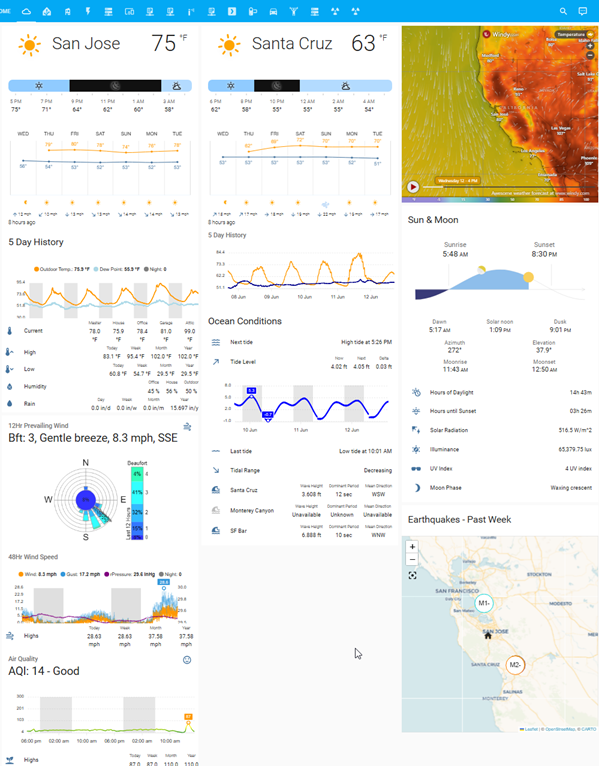
To provide context, here’s the state of what my dashboard was at the start of this project:
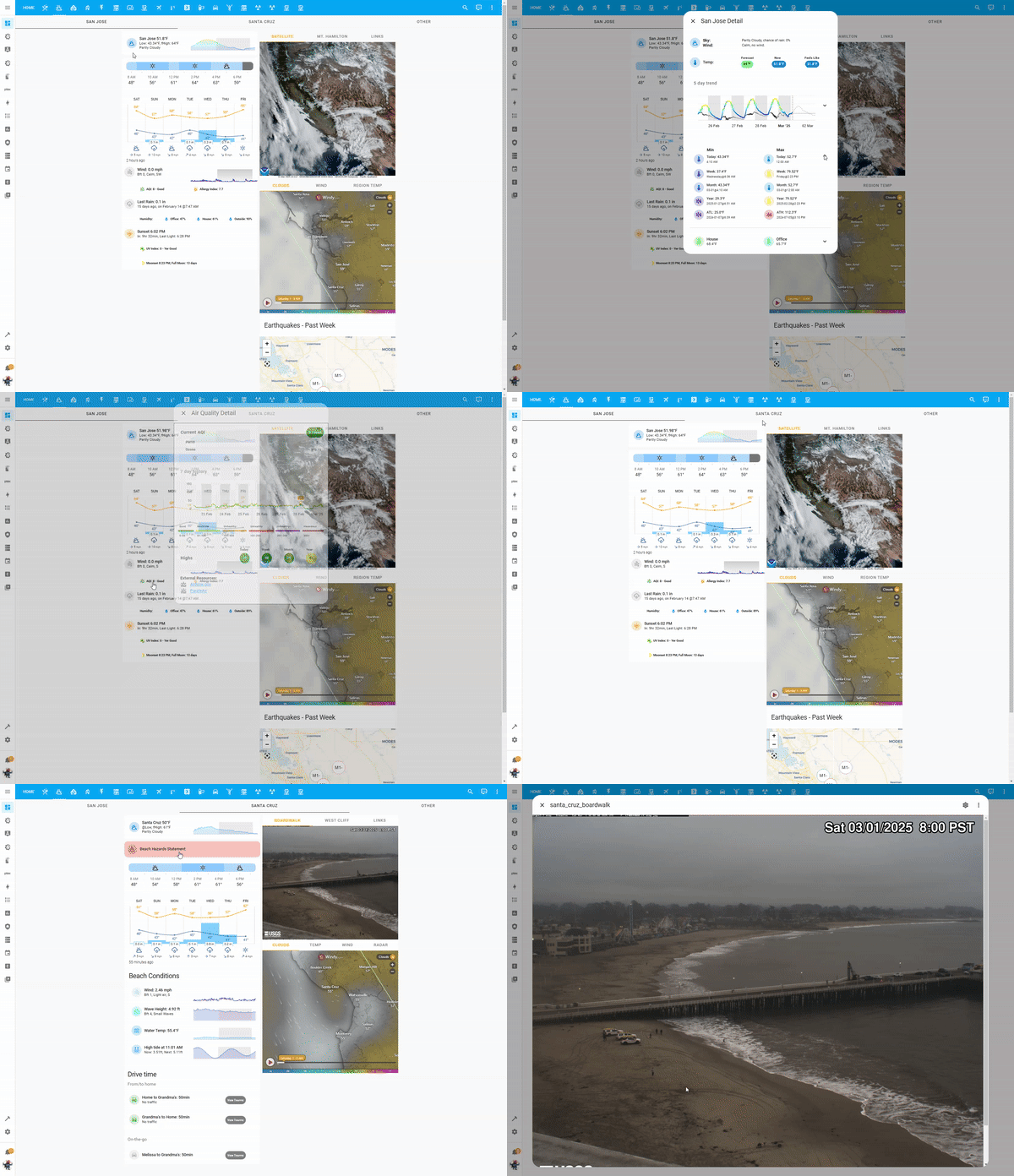
And here’s a quick gif of the dashboard at the end of the project (larger images are available in the Gallery):
Objectives
I started by defining the objectives that I thought would best address my dashboard woes:
- Simplify content and layout.
- Create a framework that promotes simplification and preserves access to detail.
- Ensure data is equally usable in both desktop and mobile environments.
Changes
With those objectives in mind, and after considering various options, I then set about implementing the following changes:
- I had San Jose and Santa Cruz weather listed on the same page, but was rarely interested seeing both at the same time. Separating the two seemed like an obvious first step. I thought a tabbed layout would be a good solution. It even allowed me to add an “Other” tab for three other locations I also wanted to track but viewed even less often.

-
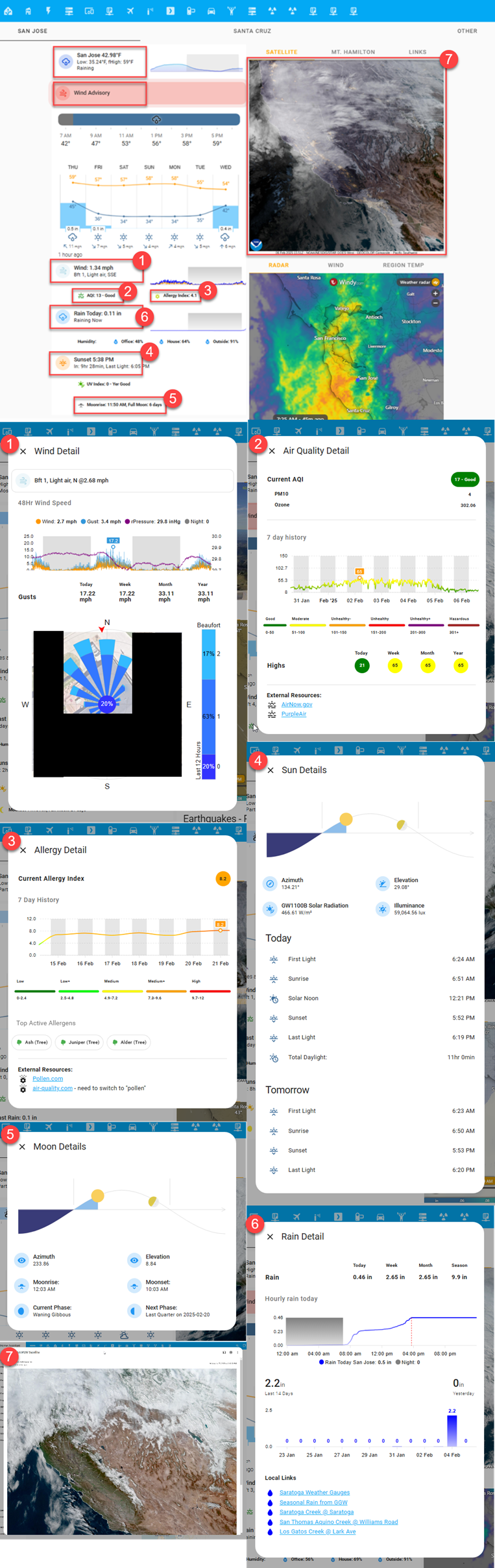
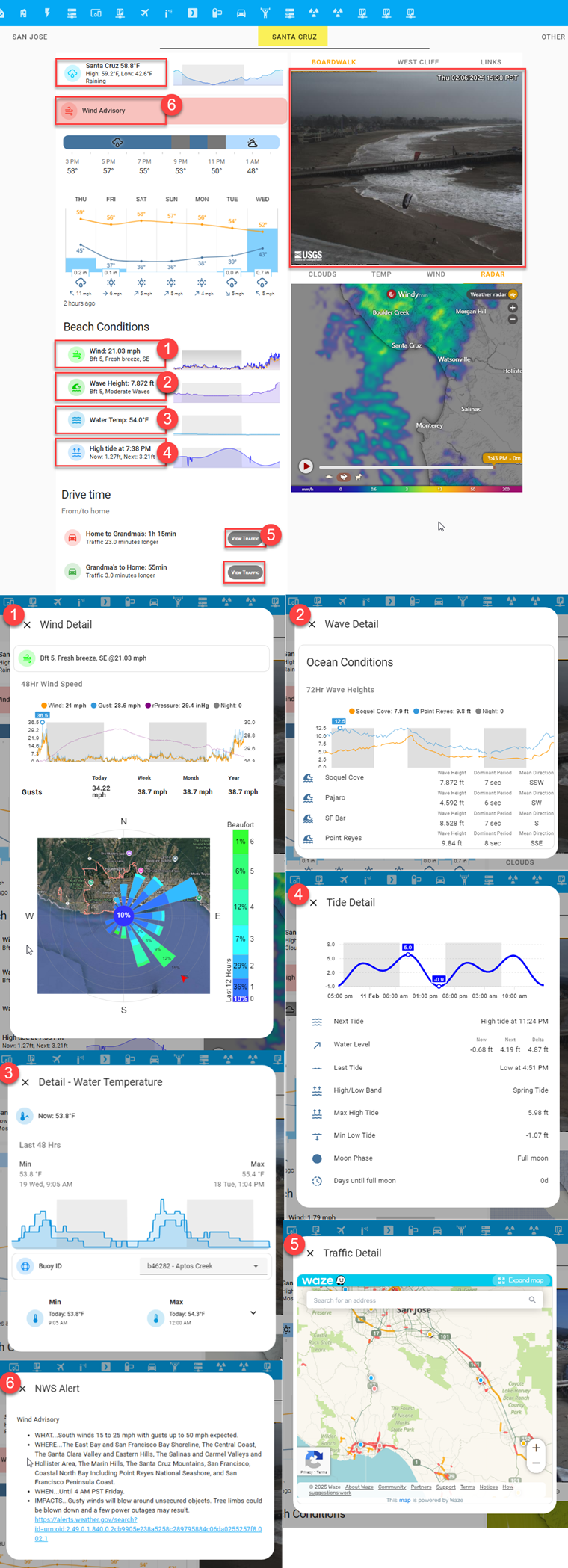
After segmenting locations, I then focused on making the data more useful. I decided to show only “headline” level information on each tab and placed all supporting detail in a popup window that triggers when the headline region is clicked. The red rectangles in the image below (these are not visible in the UI) outline these trigger regions (Note: the Gallery section below has detailed images of each popup).
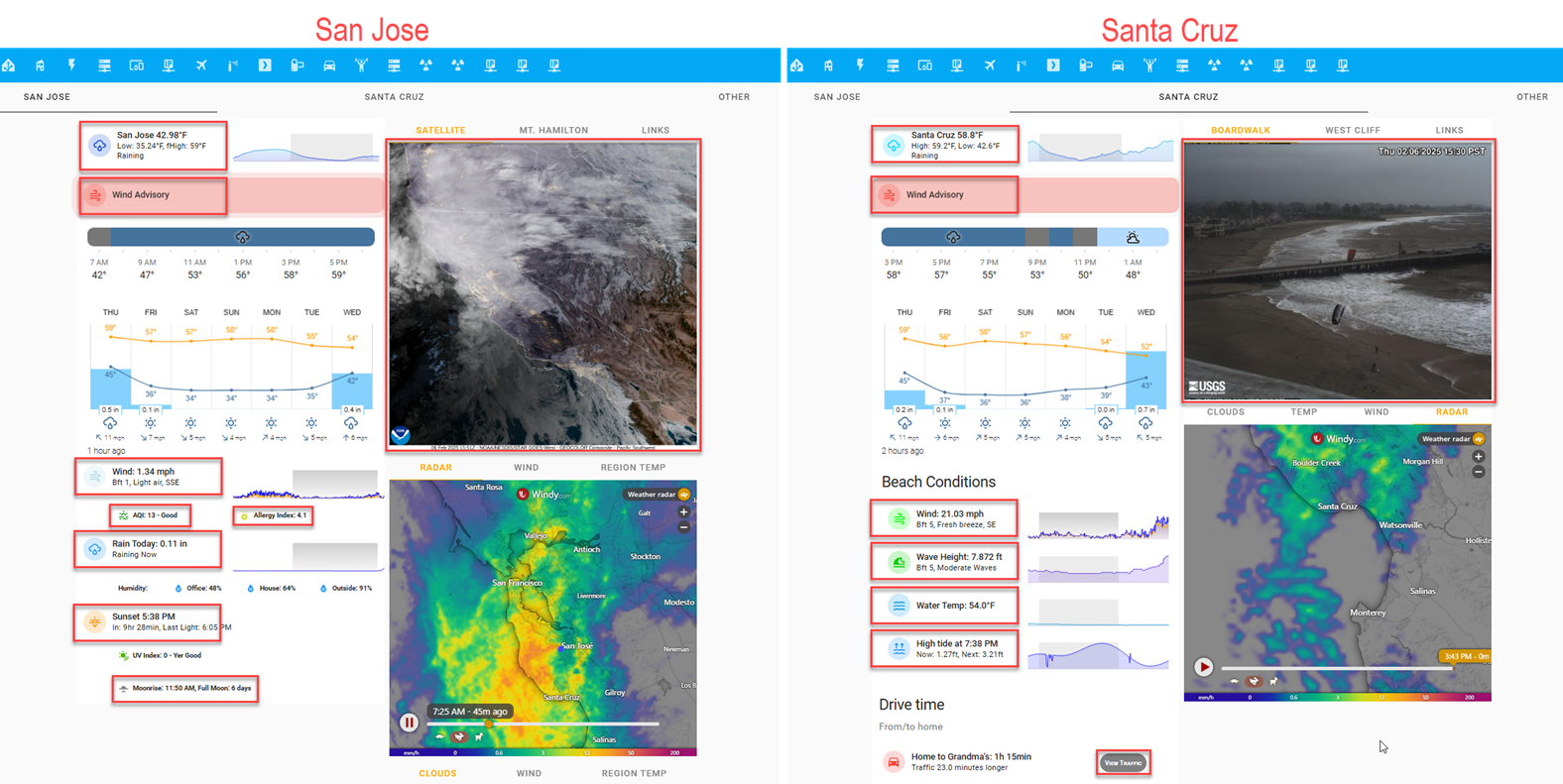
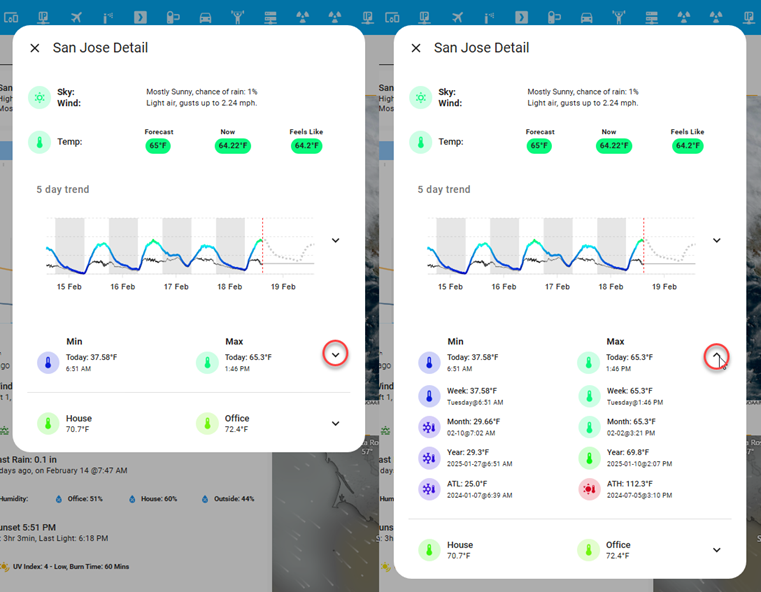
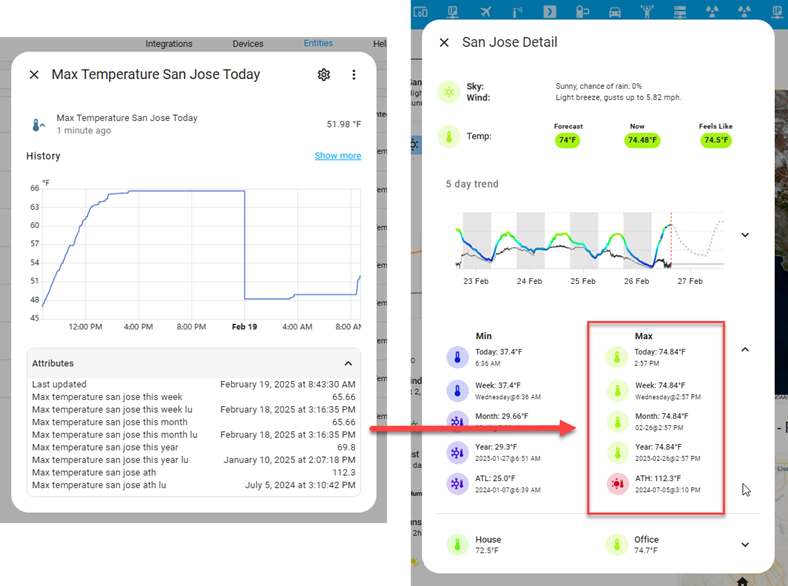
2a. The temperature popup, the first clickable region shown above left, is a good example of the level of detail that was moved to popups. It has a lot detail related to the current temperature that I occasionally want to see, like the five day trend graph. Other information like the weekly, monthly, and yearly min/max temps (below) I want to see even less, but I want those data points available for the times I do want to see them. For these situations, I’ve used an expander card to hide the information by default. Clicking the down arrow will quickly reveal the additional information.
-
I also wanted the content of each tab to feel dynamic, relevant to the moment, and to aid with understanding. I used the methods described below to help achieve some of this.
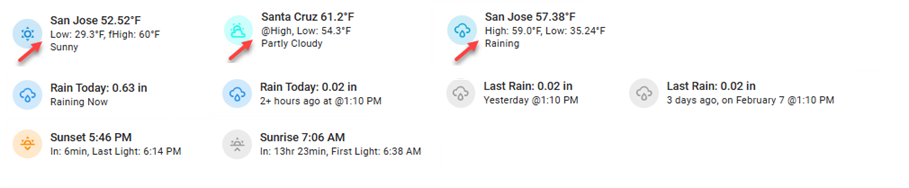
- Dynamic Labelling & Text: In many instances the labels adjust to reflect a time-based element about the data they represent. For example, in the image below, the arrows illustrate that the position changes for the low, high, and forecasted high temperature values. In the early morning I want to know what the overnight low was and what the day’s forecasted high (fHigh) is. This is shown with the first arrow. However, in the afternoon the actual high is more relevant to me. If I happen to be looking at it when the temperature is at the day’s high, I want to be informed about it, and if not, I want to see what it was. This is shown with the second two arrows. In the rain example, the text will always tell you the time since the last rain event.
- Icons & Icon Coloring: Weather icons update to show a pictograph of the current weather conditions and use a color gradient mapped to the temperature scale. Other icons change color in a similar fashion. The wind icon color is mapped to a wind speed scale, while others, only change color based on a state. The sun is orange if it is up, otherwise it is grey.
- Weather Alerts: Alert notifications are either visible or hidden depending on whether there are any active alerts for the location being monitored. Two different alert types are shown below, though there are many different types possible. These are clickable notifications that will generate a popup to show the alert’s detail.

- Satellite and Webcam Images: These are configured to refresh every 15mins. Tabs are also used here to support viewing multiple locations. Clicking an image will generate a popup and clicking the popup title will enlarge the image for better viewing (see gif image at the beginning of this document).
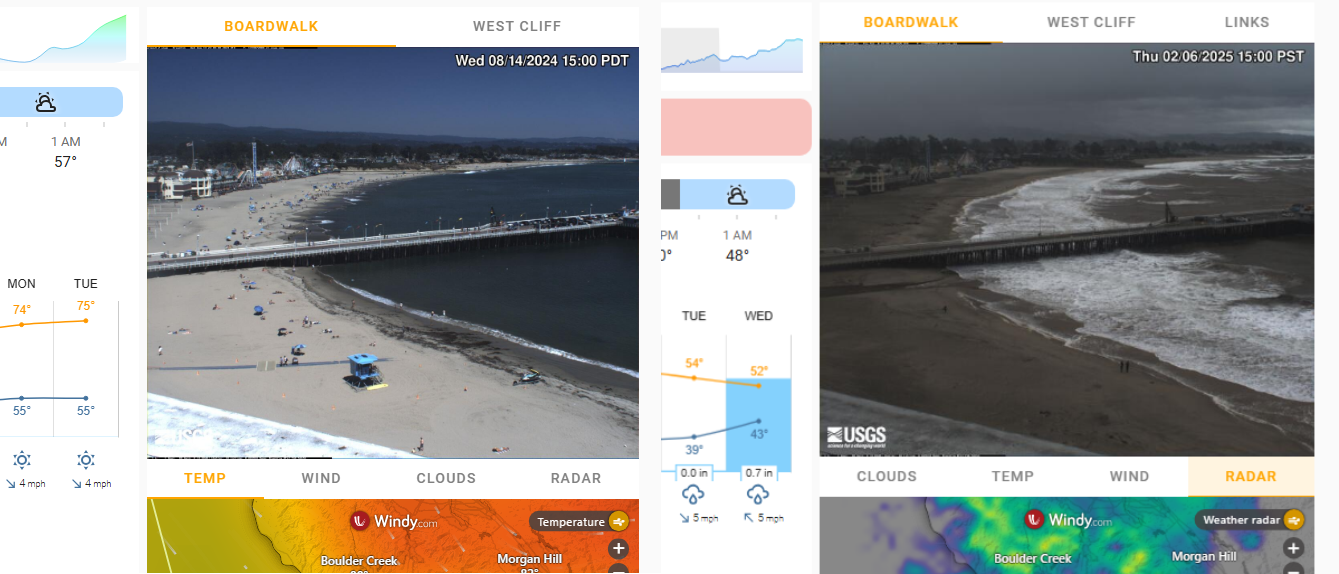
- Windy.com Charts: These are tabbed (image above, …sorry, it’s only the bottom 20%) and conditionally displayed based on current and forecasted conditions. If it is raining or about to rain, the radar chart will be brought to the forefront, while another chart may be displayed based on a different set of weather conditions (ex. above left - temperature is shown, above right, the radar image is shown).
- Dynamic Labelling & Text: In many instances the labels adjust to reflect a time-based element about the data they represent. For example, in the image below, the arrows illustrate that the position changes for the low, high, and forecasted high temperature values. In the early morning I want to know what the overnight low was and what the day’s forecasted high (fHigh) is. This is shown with the first arrow. However, in the afternoon the actual high is more relevant to me. If I happen to be looking at it when the temperature is at the day’s high, I want to be informed about it, and if not, I want to see what it was. This is shown with the second two arrows. In the rain example, the text will always tell you the time since the last rain event.
-
Other Design Considerations
- Ordering: Data is arranged from the top down, left to right with the topleft showing what’s expected to be the most relevant (the current temp and a summary).
- Alignment: Secondary level headline information is indented (San Jose tab).
- Groupings: As much as possible, like-things are grouped with like-things.
- Layout:
- Moved to a two column layout instead of the original three. “Headline” data is on the left column and the right column is mostly reserved for satellite images and charts. These changes forced the content to be more focused and minimized scrolling on mobile.
- Optimized label sizing and positioning to work equally well for desktop & mobile environments.
Setup
There is a lot going on under-the-hood to collect all of the data and then to display it in Home Assistant. This section details the many integrations used to retrieve the data and the plugins and UI components I’ve used to display it.
Data Integrations
- Ambient Weather Network: Retrieves the current weather for monitored remote locations.
- Ecowitt: Retrieves data from the Ecowitt weather station I use to monitor weather at my home.
- Generic Camera: Retrieves webcam and satellite images from URL’s I provided.
- Iqvia: Retrieves allergy and pollen data.
- Moon: This is a super basic standard integration that only provides the current moon phase. To get more data, I had to create a REST sensor to retrieve the moon’s cycle and position as discussed in this thread.
- NOAA Tides and Currents: Retrieves tide and ocean buoy data from monitored locations.
- Pirate weather: Retrieves forecast and weather alert data for all monitored locations.
- Sun2: Using this in addition to the standard sun integration. It provides a few more sensors the standard one does not have.
- U.S. Geological Survey Earthquake Hazards: Retrieves earthquake data for the SF Bay Area.
- Windy.com: Windy.com charts are displayed using an iframe with an embedded windy.com URL.
- World’s Air Quality Index: Retrieves air quality data.
Data Objects (Template Sensors)
In some cases, the data is not directly retrievable, but it is collectable over time. My temperature examples in section 2a above for the weekly, monthly, and yearly high temperatures highlight this point well. I haven’t seen that level of data available anywhere (… at least, without a pro level subscription) but it’s not that hard to collect using a trigger based template sensor. Since the data points are related conceptually, I find it easier to store them in a single sensor as attributes rather than across several different sensors. The max temperature sensor (below) is setup this way. Today’s high is captured as the state value, then all the other temperature elements are stored as separate attributes. The sensor trigger fires when the current temperature is higher than the current state value and then proceeds to evaluate the rest of the attributes and updates them accordingly. This data is then used to populate the max temperature column on the temperature popup (Note: Images were taken at different times so the temperature values won’t match exactly). The yaml to create the sensor entity is here.
Data Display (plugins & related components)
This section details the different plugins and related framework support I used to get everything to display as it does in the images in this post. It’s worth mentioning here that everything was done with the UI set to YAML mode. The dynamic elements required extra and often repetitive code. As much as possible, I used the Decluttering card and custom templates to reduce that code as much as I could. Without either of those this likely wouldn’t be maintainable. Here’s a sample of the code for the San Jose tab that then makes calls to the decluttering card template yaml.
- Apexcharts-card: Used for detailed graphs.
- Mini-graph-card: Used for simple graphs.
- Decluttering card: Provides support for variable declaration and reuse of lovelace code blocks. Benefits: big reduction of repetitive code which reduces size and improves reliably since the same code can be used throughout. This dashboard would be very difficult to maintain without this card.
- Hass-browser-mod: Framework to generate and control popups.
- Lovelace-card-mod: Fine grain control of sizing and display characteristics of card elements.
- Lovelace-expander-card: Used in certain locations to reveal additional data by clicking a down arrow icon.
- Lovelace-horizon-card: Used on both the sun & moon popups.
- Lovelace-layout-card: Fine grain control for the arrangement and positioning of card elements.
- Lovelace_mushroom: Mostly used the standard template card and the template chip card coupled with extensive use of Home Assistant’s templating/Jinja support.
- Lovelace-windrose-card: A specific chart type that is used to characterize wind speed and direction.
- Markdown cards: Used to display weather alert info and external links.
- Tabbed-card: Enables the tabbed navigation.
- Templating: Used extensively throughout.
- Weather-chart-card: Using this to display all forecast related data.
Gallery
This section provides examples of the different popups that are available within and across tabs:
San Jose
Santa Cruz
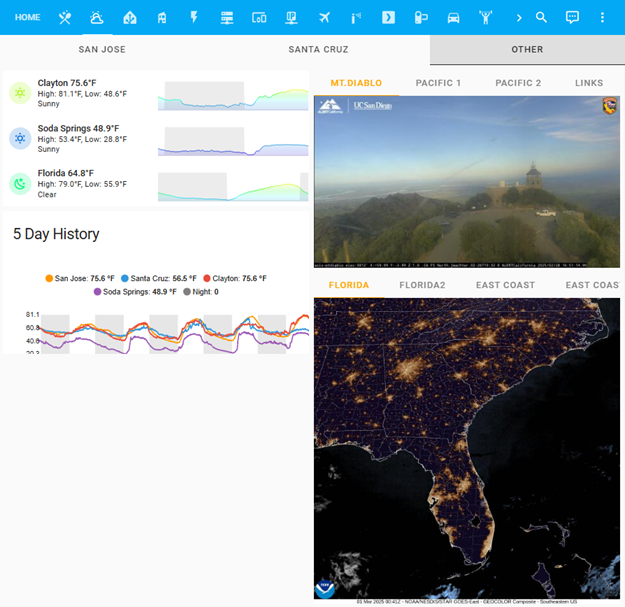
“Other” tab
This is the least developed tab out of the three. I may build it out some more when I decide to make the time, but the main reason for showing it is to illustrate how the weather information is organized when a location doesn’t have a dedicated tab like I did for San Jose and Santa Cruz. The tab itself is pretty plain right now. Clicking any of the three named locations will create a popup.
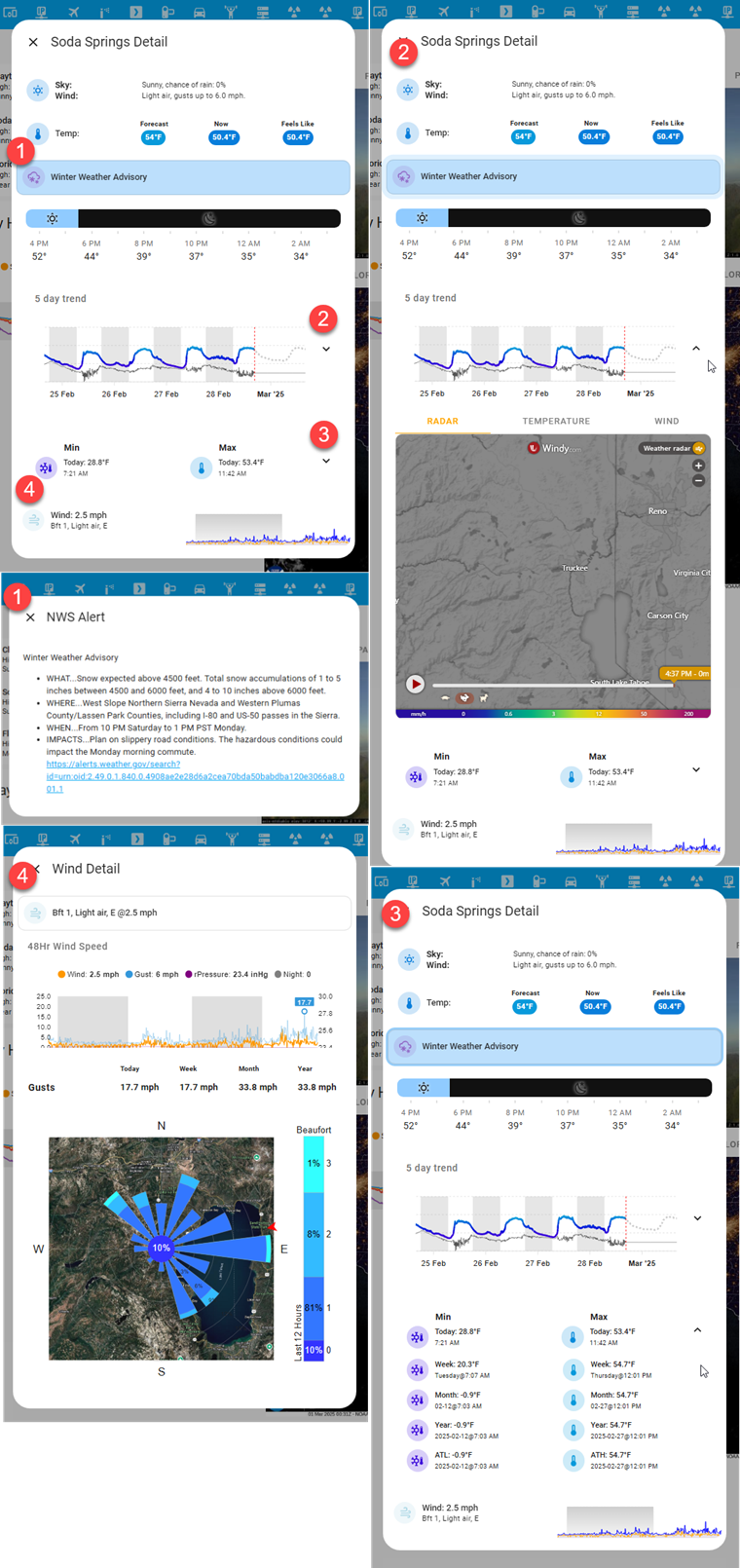
This is the popup I have for the Lake Tahoe region (Soda Springs in the image). It has elements I placed at the tab level on other tabs and some of the interactive elements from the popups.
Fun Stuff
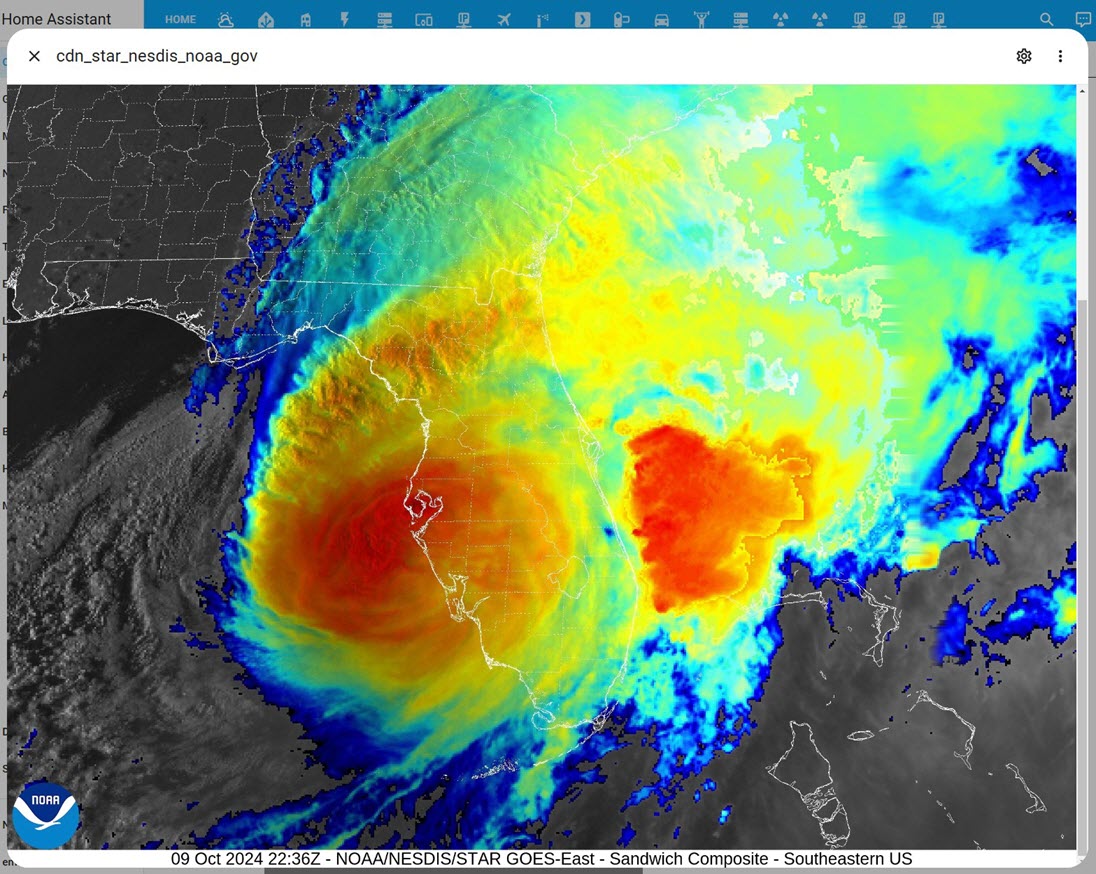
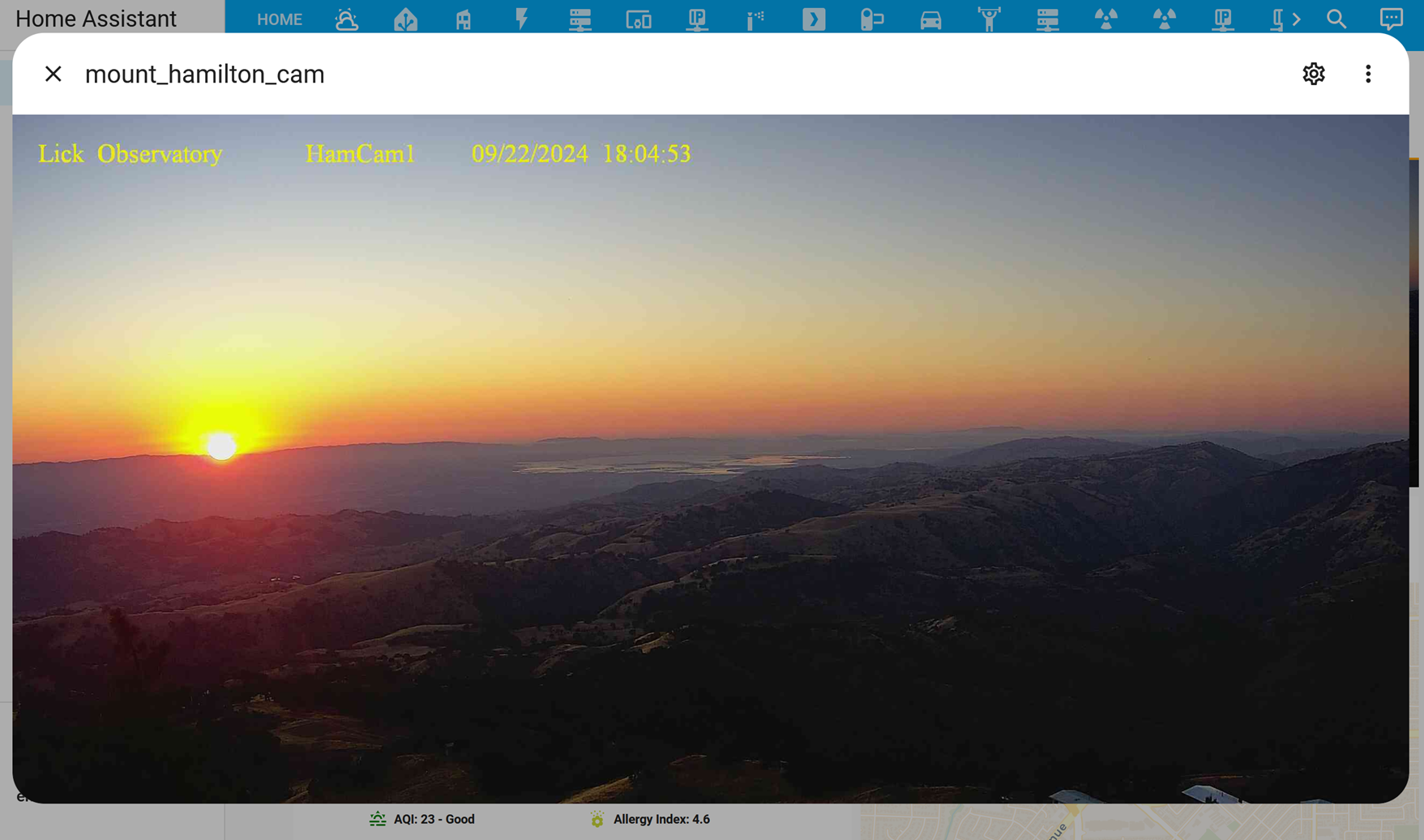
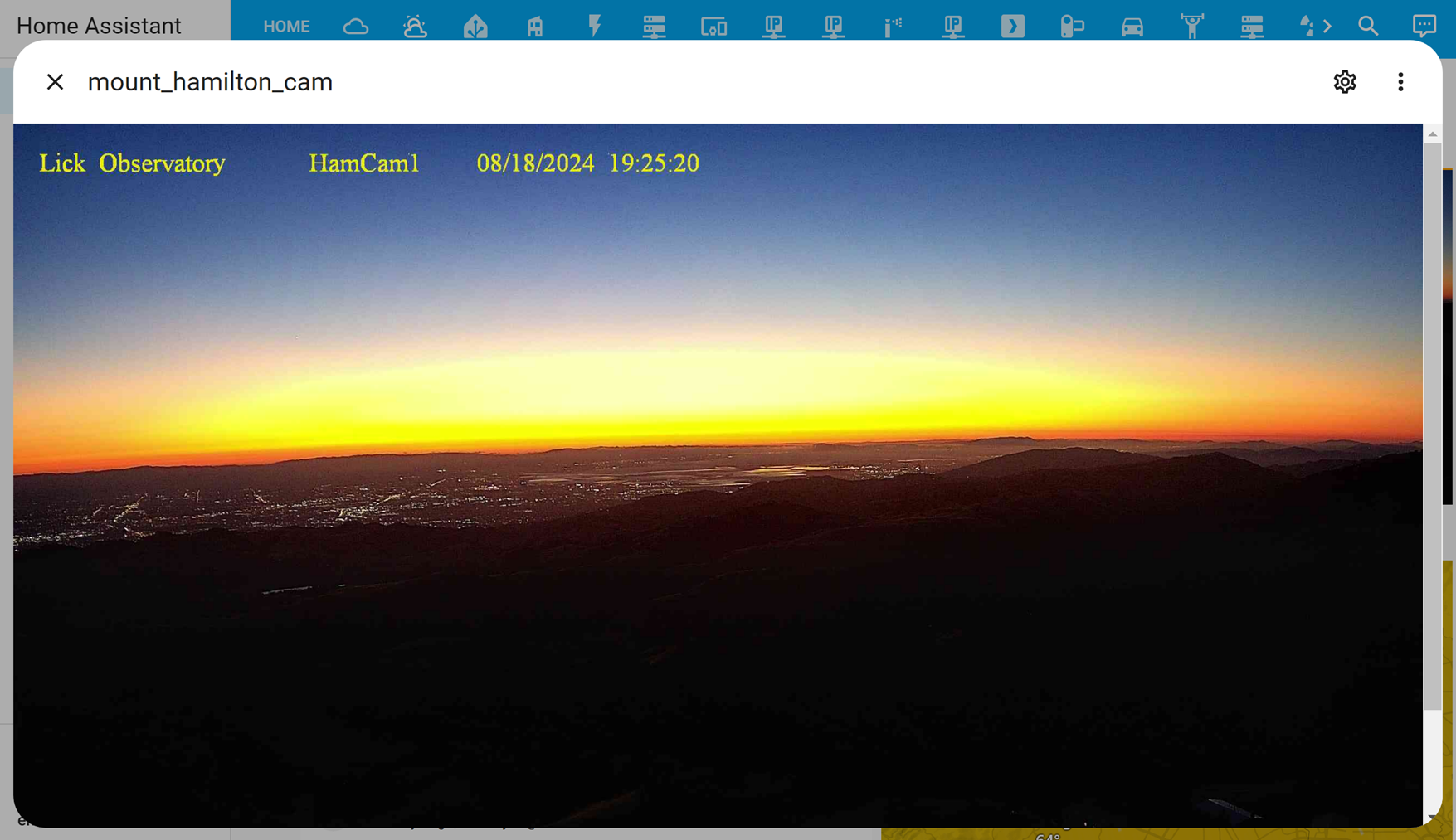
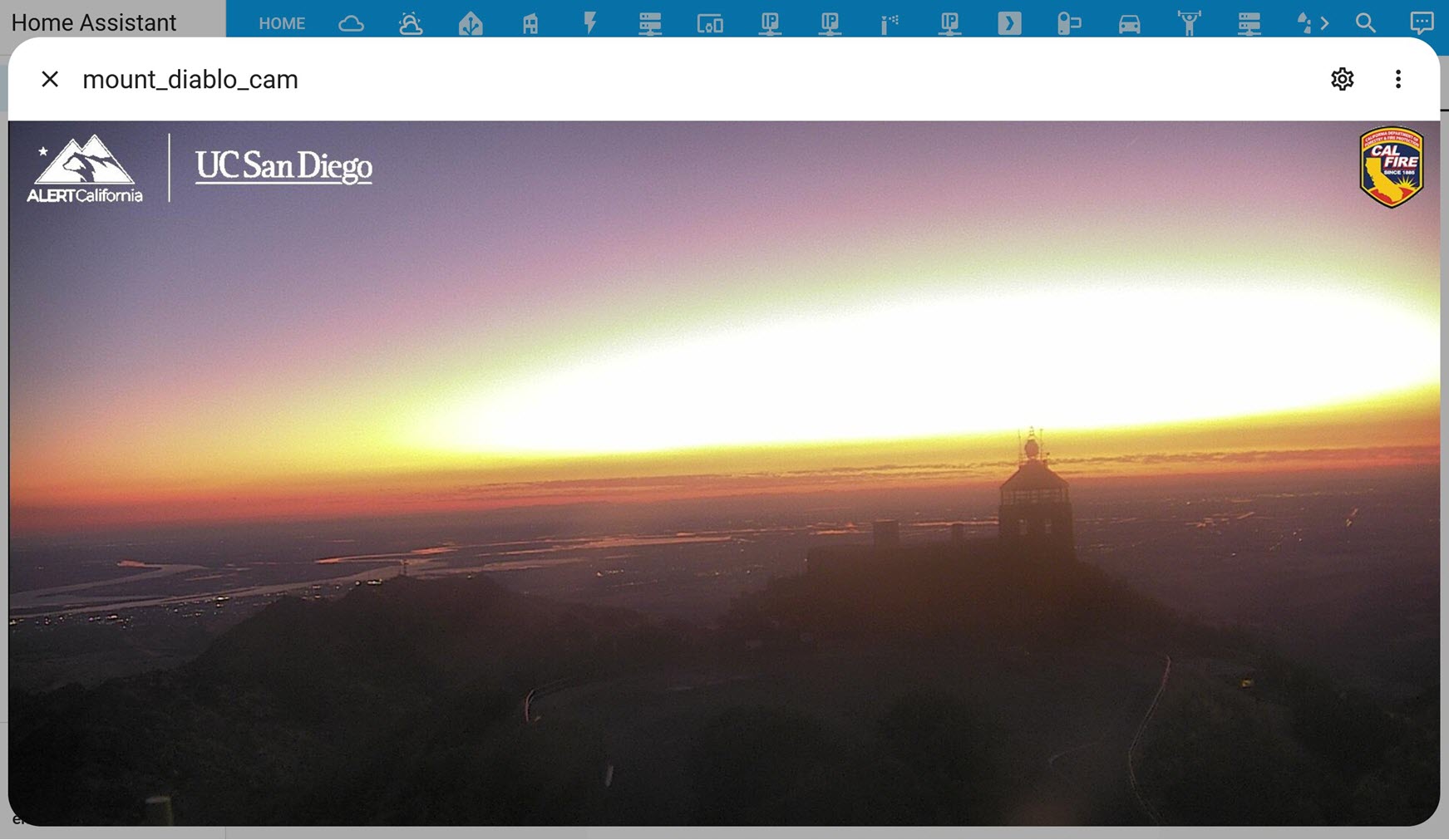
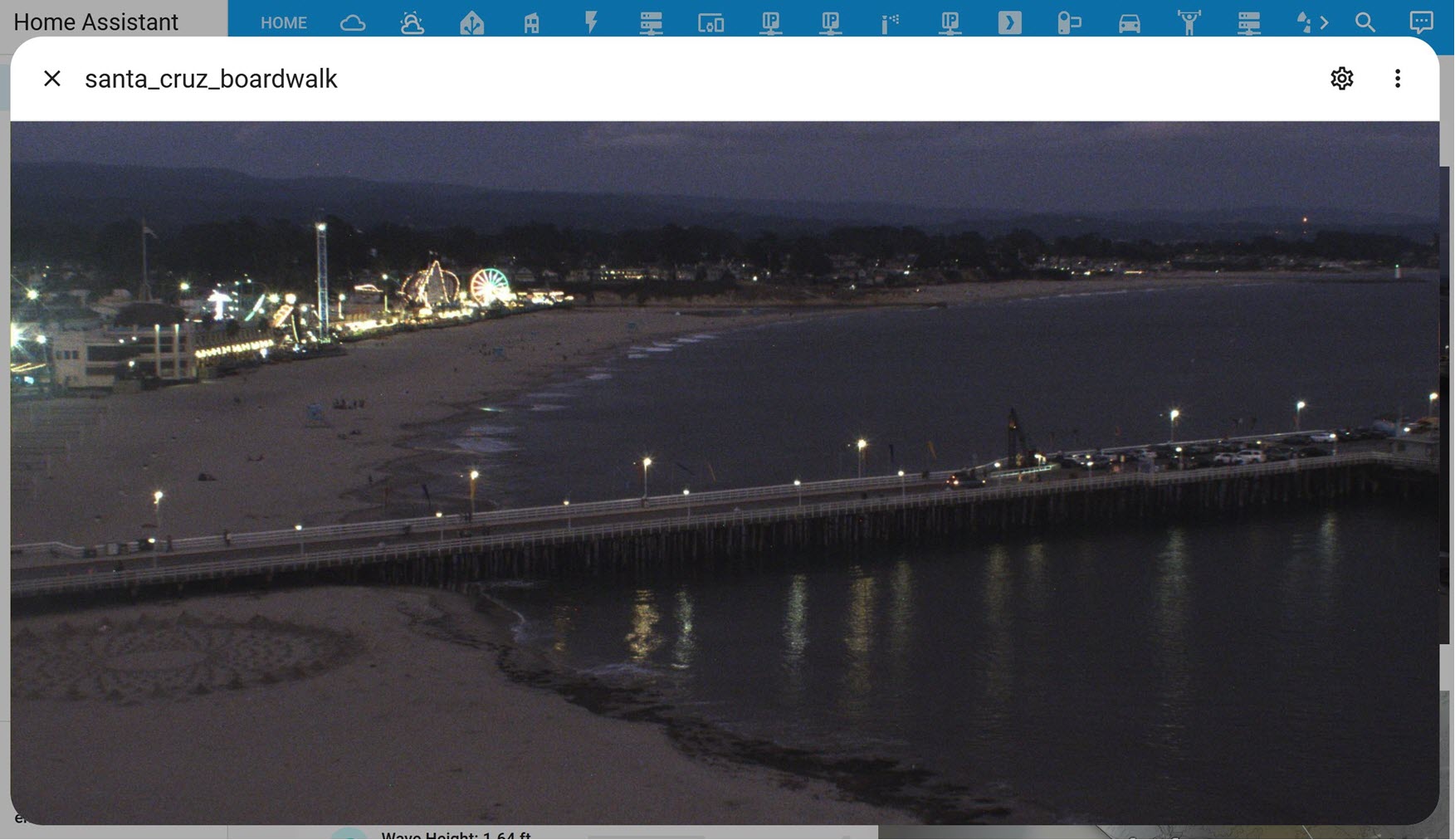
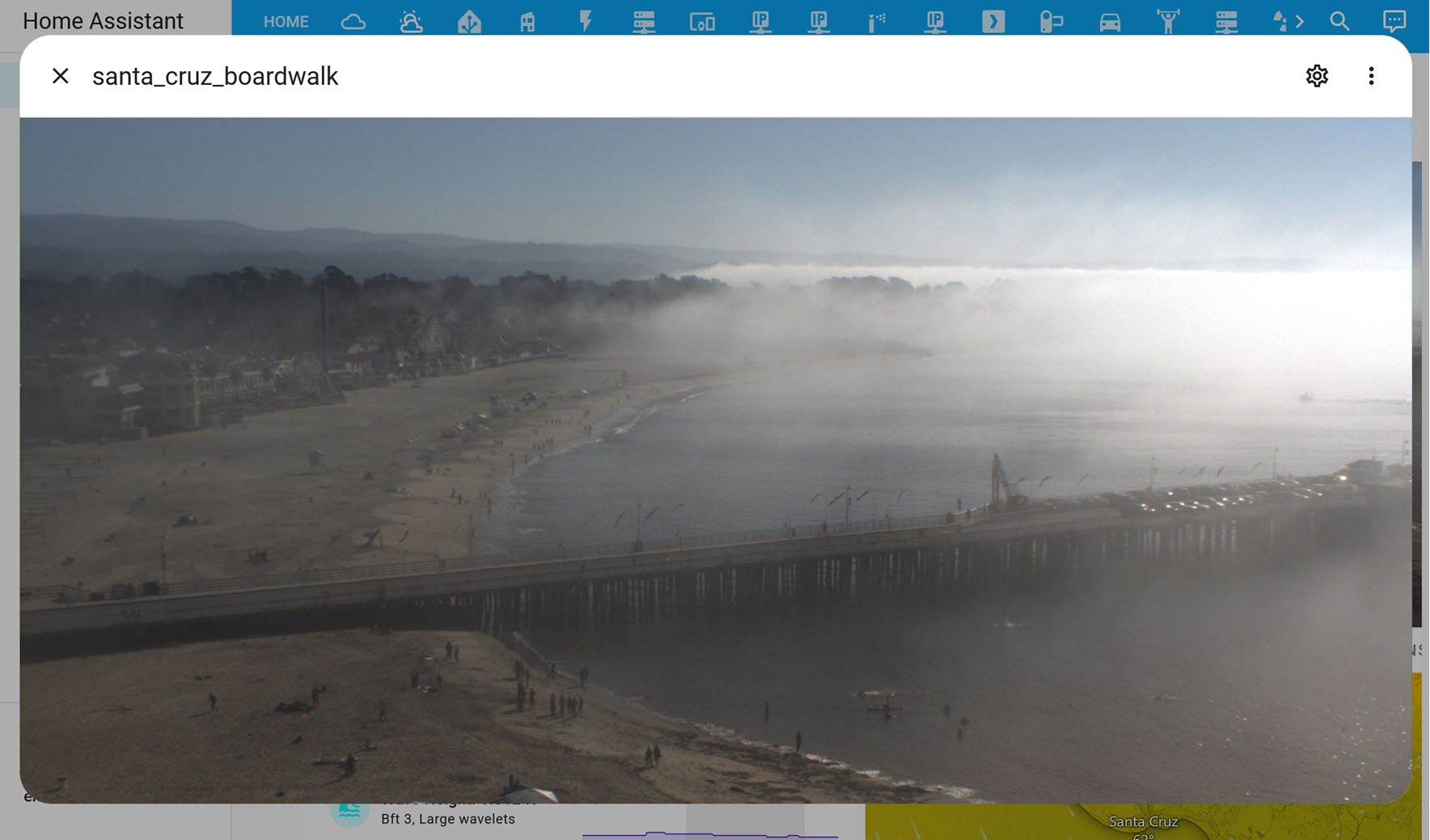
I’ve really enjoyed adding the satellite images from NOAA and various webcams to my dashboard. It clearly makes it more dynamic and you never know what you are going to see. Here’s a few of my favorites from the last few months.
Hurricane milton making landfall over Florida (October 2024):
Sunsets:
Sunrise:
Beach & Fog:
Thanks for looking!